If you have received personalized authentication credentials from us ( a username and a password ),
then you can:
then you can:
- Access your data from the web browser
- Access your data using a FTP client
- Access your data using a WebDAV client
- Access your data from a shell client
You can access the server using your preferred browser, in this way:
- point your browser directly to https://bioftp.crs4.it/username
- log in using your credentials
- explore the folder tree
- download your files just clicking on it
Access with a GUI client
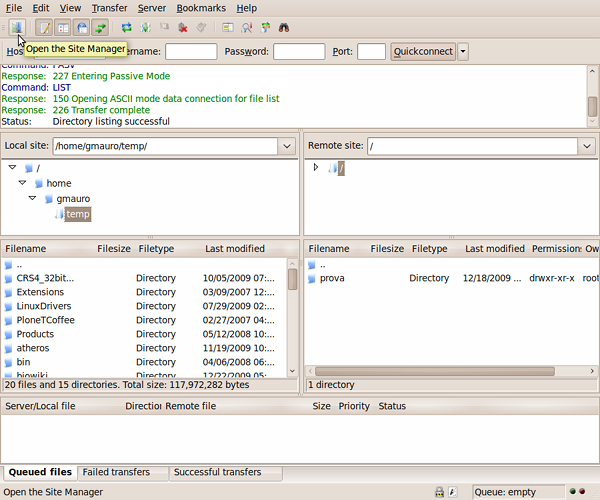
You can access the server using a gui client such as FileZilla available for Windows, Mac and Linux.In FileZilla, open the Site Manager:
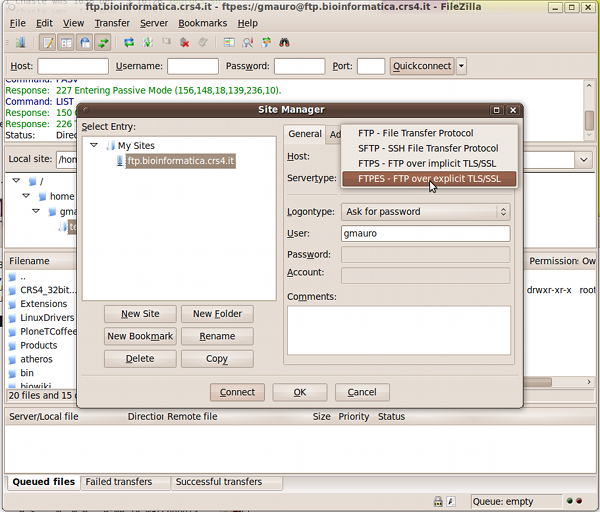
Create a new site with the "New Site" button, give it a name, and insert bioftp.crs4.it as Host.
If you are using an old version of FileZilla and you see a Server Type field, choose "FTPES".
Otherwise, choose "FTP" as Protocol, and "Require explicit FTP over TLS" as Encryption.
Moreover, choose "Normal" as Logon Type, and insert the User and Password you received from the FTP administrator.
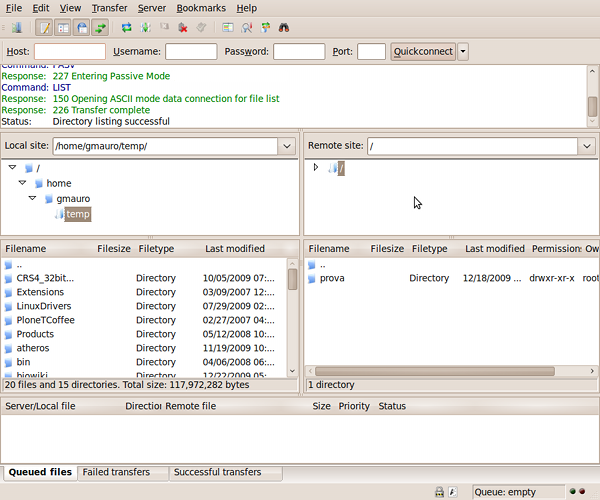
You should now be logged in: (in case of errors read below)
Access via command line
You can access via command line from Linux or MacOS by using lftp or another client of your choice that supports TLS.Troubleshooting
If you experience issues connecting please ask your IT to allow FTP and FTP over TLS and the respective ports, alternatively please mount the share with WebDAV protocol as described below.Access via CyberDuck
You can access the server using a gui client such as https://cyberduck.io/
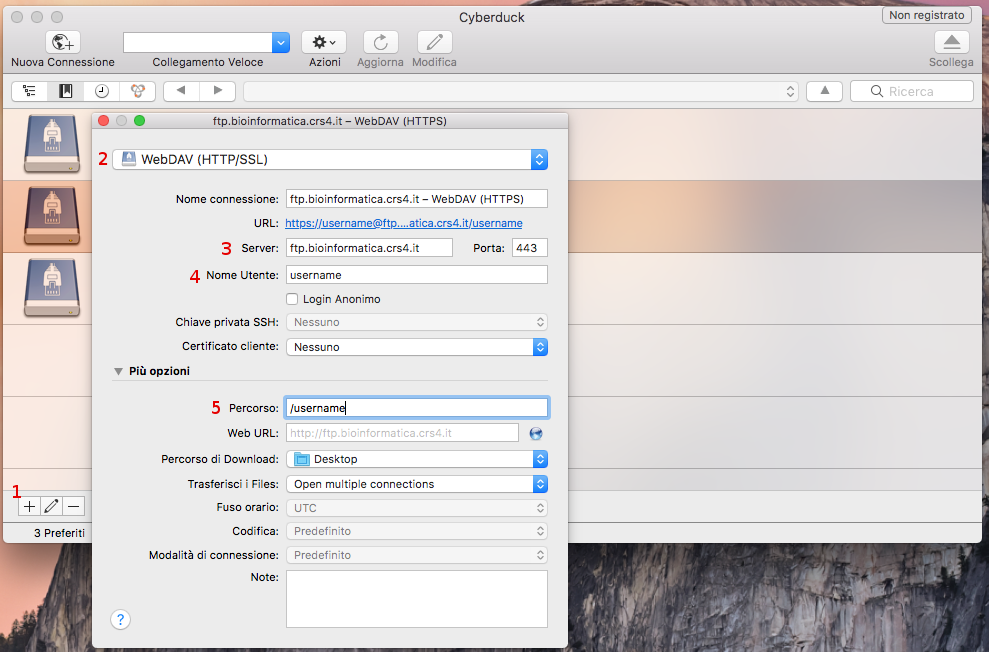
Access using embedded webdav client
Alternatively you can use your embedded webdav clients in Linux / Windows / MacOS. Always replace "username" with the username you were provided from us.-
On Linux:
Open Nautilus, on the left panel go to the botton and press "+ Other Locations", as server insert:davs://bioftp.crs4.it/username
and provide your credentials. -
On MacOS:
Open Finder, on the "Go" menu, select "Connect to Server", and as server provide the following:https://bioftp.crs4.it/username
and select that you will provide alternate credentials when prompted. Use the credentials you received from us. -
On Windows:
In windows explorer find the option "Map Network Drive" (location may vary across Windows versions, in general you can Right click on "My Computer" and find the option there)
As path select:https://bioftp.crs4.it/username
And select "Connect using different credentials" and provide the credentials you received from us.
To retrieve files from the server, you can use curl:
curl -O -k --ftp-ssl -u username:password ftp://bioftp.crs4.it/fileTo upload files to the server, you can use curl:
curl -T filename -k --ftp-ssl -u username:password ftp://bioftp.crs4.it/destination_folder/To upload multiple files to the server, you can combine find and curl:
find foldername -type f -exec curl -T {} -k --ftp-ssl --ftp-create-dirs -u username:password ftp://bioftp.crs4.it/{} \;
To check whether a remote file exists: curl -I -k --ftp-ssl -u username:password ftp://bioftp.crs4.it/filename